


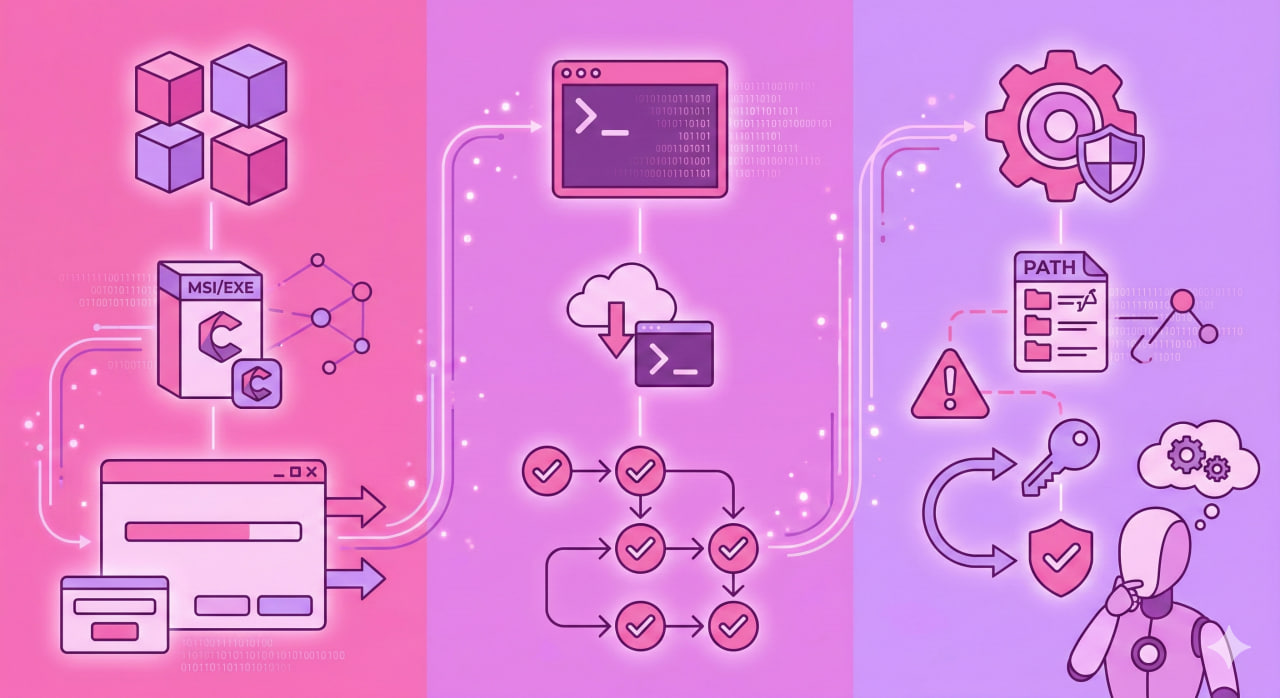
Claude Code arrived on Windows later than macOS and Linux — and required WSL until 2025. Now it runs natively. But the installation still has quirks: Git for Windows is required, PATH does not update immediately, and the npm method is officially deprecated even though it keeps appearing in guides. Here is what is current.
What You Need Before Installing
Git for Windows — mandatory. Claude Code uses Git Bash internally to run commands even when you launch it from PowerShell or CMD. Without Git, installation either fails or starts but cannot function properly.
Download from git-scm.com, install with default settings. The key — make sure "Add Git to PATH" is checked (it is by default).
Subscription or API key. No free tier for Claude Code. One of these is needed:
- Claude Pro ($20/mo) — included in the subscription
- Claude Max ($100–200/mo) — same plus higher limits
- API key from console.anthropic.com — pay per token
Administrator rights not required. Installation goes into the user profile.
Method 1: Native Installer via PowerShell (Recommended)
No Node.js required. Updates automatically in the background. Officially recommended by Anthropic.
Open PowerShell (Win+X → Terminal or Win+R → powershell) and run:
irm https://claude.ai/install.ps1 | iex
The installer downloads the binary and places it in C:\Users\YourName\.local\bin.
After it finishes — close the terminal and open a new one. PATH only updates in a new session.
Verify:
claude --version
Common Post-Install Problem: PATH
The native installer puts claude.exe in ~\.local\bin. If PowerShell does not find the command after reopening — that folder is not in PATH.
Check:
echo $env:PATH
If \.local\bin is missing — add it manually. Win+R → sysdm.cpl → Advanced tab → Environment Variables → find PATH in user variables → Edit → New → add:
C:\Users\YourName\.local\bin
Restart the terminal. After that claude --version should work.
Method 2: WinGet
WinGet is built into Windows 11 and Windows 10 22H2+. If winget does not work — install "App Installer" from the Microsoft Store.
winget install Anthropic.ClaudeCode
WinGet does NOT auto-update Claude Code. Manual update:
winget upgrade Anthropic.ClaudeCode
Known quirk: Claude Code sometimes notifies about a new version before it appears in the WinGet repository. If upgrade finds nothing — wait a few hours.
Method 3: WSL (For Those Working in a Linux Environment)
If you develop inside WSL — install Claude Code directly in WSL:
curl -fsSL https://claude.ai/install.sh | bash
WSL 2 supports an isolated sandbox for commands — more secure. WSL 1 runs without it.
Store projects in the Linux filesystem (~/projects/) rather than mounted Windows drives (/mnt/c/...) — file operations are noticeably faster.
npm: The Deprecated Method
npm installation is officially deprecated. Anthropic recommends migrating to the native installer.
If npm version is still installed and you want to migrate:
Install native version:
irm https://claude.ai/install.ps1 | iex
Remove npm version:
npm uninstall -g @anthropic-ai/claude-code
Settings from ~\.claude\ are preserved during migration.
First Launch and Authentication
Navigate to a project folder and run:
cd C:\projects\myapp
claude
On first launch a browser opens for OAuth authentication via claude.ai. Sign in with a Claude Pro/Max account. The token is saved to ~\.claude\session.json — no repeated logins needed.
For CI/CD or servers where a browser is unavailable — environment variable:
$env:ANTHROPIC_API_KEY = "sk-ant-api03-your-key"
claude
Clipboard Quirk
On Windows, pasting an image from clipboard uses Alt+V, not Ctrl+V. Ctrl+V pastes text only. This is by design. Took a screenshot with Win+Shift+S — paste with Alt+V.
Diagnostics: claude doctor
Built-in command that checks the installation:
claude doctor
Shows: installation type (native/npm/WinGet), version, auth status, Git health, PATH issues. Run this first when something is not working.
Auto-Updates
Native installation (PowerShell) auto-updates in the background. WinGet — manual only via winget upgrade. npm — npm update -g @anthropic-ai/claude-code.
Switch update channel for the native version:
claude /config
latest — updates immediately on release. stable — ~one week delay, skips releases with critical bugs.
Quick Reference
| Task | Command |
|---|---|
| Install (recommended) | irm https://claude.ai/install.ps1 | iex |
| Install via WinGet | winget install Anthropic.ClaudeCode |
| Check version | claude --version |
| Diagnose issues | claude doctor |
| First run | cd /path/to/project && claude |
| Switch model | claude --model claude-sonnet-4-6 |
| Settings | claude /config |
| Update (WinGet) | winget upgrade Anthropic.ClaudeCode |
| Generate CLAUDE.md | claude /init |
| Paste image | Alt+V (not Ctrl+V) |

