


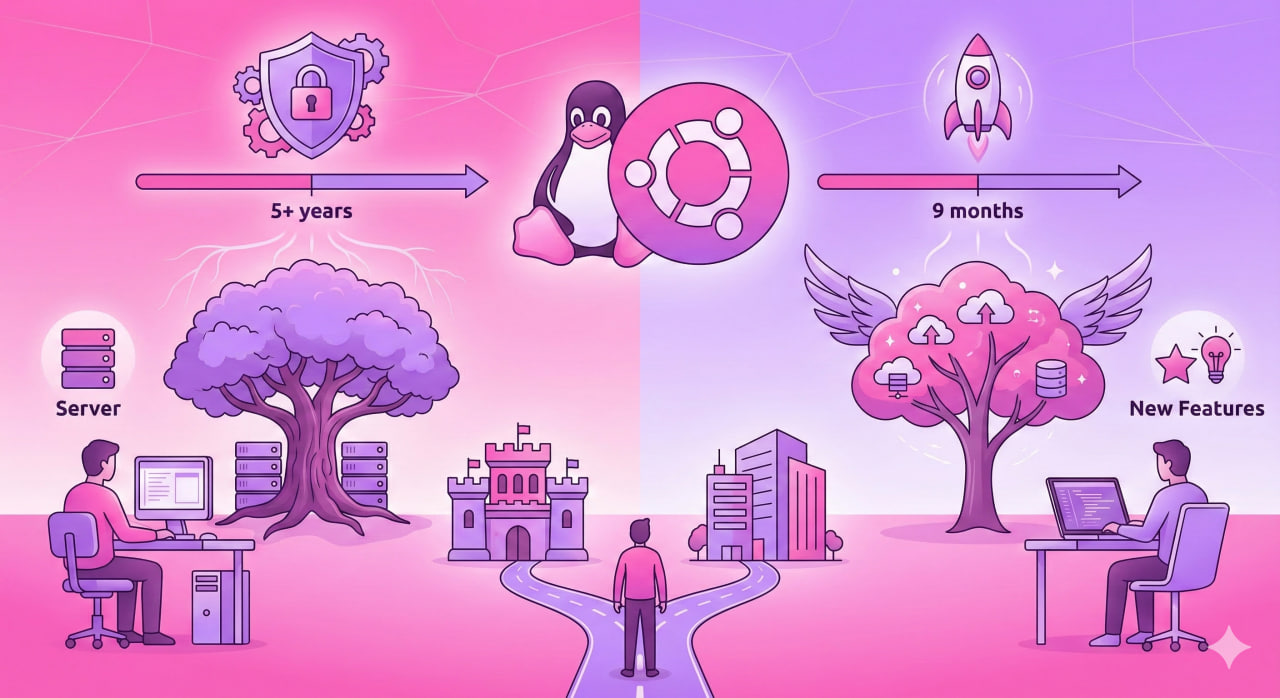
You are setting up a server and see two Ubuntu options: 24.04 LTS and 24.10. Same size, the second one has newer features. Which to choose depends entirely on what the machine is for. LTS is not just a label — it is a fundamentally different approach to updates.
LTS Stands for Long-Term Support
In practice this means Canonical commits to releasing security updates and bug fixes for this version for several years after release — even after newer Ubuntu versions have shipped.
For a personal desktop that is a convenience. For a production server it is a requirement: nobody wants to reinstall a working system every nine months.
How Long Ubuntu LTS Is Supported
Standard LTS support: 5 years. Extended via Ubuntu Pro subscription: 10 years.
Current Ubuntu LTS versions and end-of-support dates:
| Version | Codename | End of Support | Ubuntu Pro |
|---|---|---|---|
| Ubuntu 20.04 LTS | Focal Fossa | April 2025 | April 2030 |
| Ubuntu 22.04 LTS | Jammy Jellyfish | April 2027 | April 2032 |
| Ubuntu 24.04 LTS | Noble Numbat | April 2029 | April 2034 |
Non-LTS versions (23.10, 24.10) are supported for only 9 months.
LTS vs Non-LTS: The Real Difference
Non-LTS ships every six months with the latest package versions — kernel, GNOME, Python, compilers. Need the latest GCC or a fresh kernel with support for new hardware — pick 24.10.
LTS ships every two years. Packages are frozen at the versions that were current at release time. They are stable, well-tested, and will not change unexpectedly.
A concrete example: Ubuntu 22.04 LTS ships Python 3.10. It stays at 3.10 for the entire support period — it will not silently update to 3.12 or 3.13. For a production environment that is a benefit: no risk that apt upgrade breaks application dependencies.
When to Choose LTS, When to Choose Non-LTS
LTS — choose for: production servers and VPS, corporate workstations, any system where stability matters more than novelty, CI/CD environments and Docker images (most official base images use LTS).
Non-LTS — choose for: personal desktop where you want fresh software, test environments, development against the latest library versions, laptops with new hardware not yet supported in the LTS kernel.
Check Version and Support Status
View current version and whether it is LTS:
lsb_release -a
Check until when support is active:
ubuntu-security-status
Hardware Enablement Stack status:
hwe-support-status --verbose
LTS in Other Linux Distributions
Ubuntu is not the only distribution with a long-term support concept.
Debian stable — similar to LTS but without fixed dates. Supported for about 3 years after release, plus one year of LTS from the community. Changes even more slowly than Ubuntu LTS — Ubuntu LTS is itself based on Debian.
RHEL / Rocky Linux / AlmaLinux — 10 years of support. The standard for enterprise servers. Each major release is supported for a decade.
Fedora — the opposite of LTS. Support lasts 13 months, always the freshest packages. Fedora is the testing ground for technologies that later land in RHEL.
Linux Mint — synchronized with Ubuntu LTS. Mint 21.x is based on Ubuntu 22.04 LTS, Mint 22.x on Ubuntu 24.04 LTS.
Upgrading Between LTS Versions
There is an official upgrade path between LTS releases — do-release-upgrade. Ubuntu supports upgrading from one LTS to the next without reinstalling.
Check for available version upgrades:
do-release-upgrade -c
On servers it is recommended to wait for the first point release (e.g. 24.04.1) before upgrading — the most obvious issues are fixed by then.
Quick Reference
| Parameter | LTS | Non-LTS |
|---|---|---|
| Release cadence | Every 2 years (even: 22.04, 24.04) | Every 6 months |
| Support duration | 5 years (10 with Ubuntu Pro) | 9 months |
| Package versions | Frozen at release | Latest available |
| Stability | Maximum | Moderate |
| For servers | Yes | No |
| For desktop | Fine | Yes |
| Check version | lsb_release -a | lsb_release -a |
| Check support status | ubuntu-security-status | ubuntu-security-status |

