


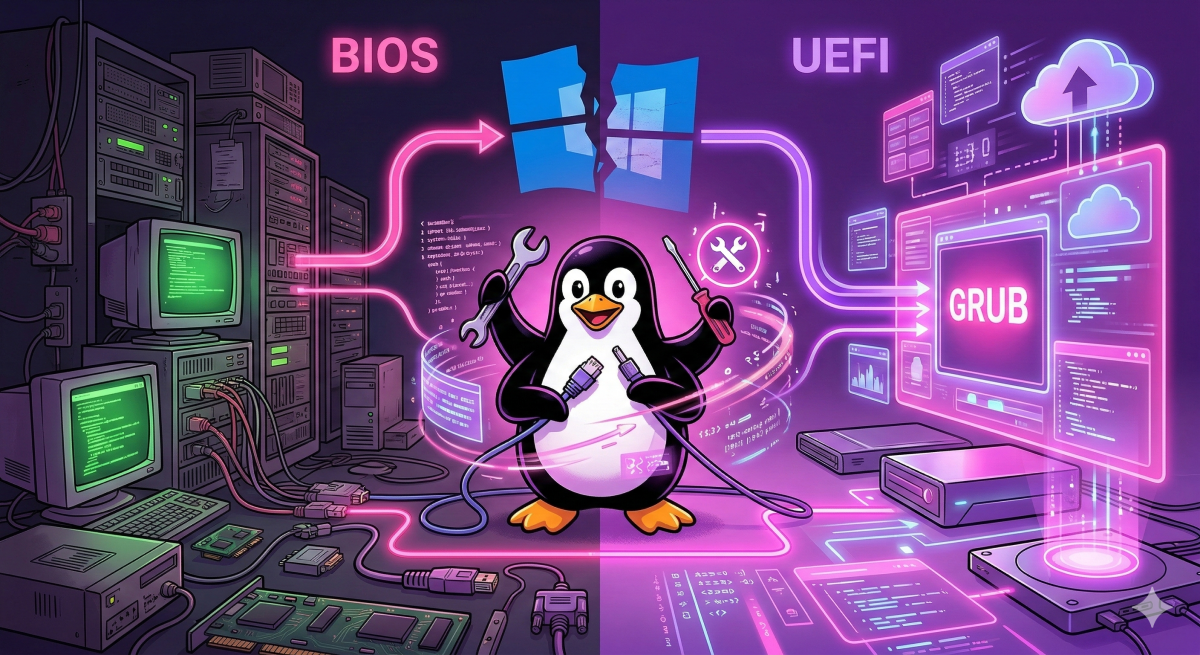
TL;DR — The Problem and the Fix
Problem: Windows 10 overwrites the boot sector with its own bootloader during installation. GRUB disappears from the boot chain and Linux stops loading.
Fix: Boot from a Live USB of the same Linux distribution, mount the Linux partition via chroot, and reinstall GRUB to the disk.
Two system types — two methods:
- BIOS + MBR →
grub-install /dev/sdXfrom chroot - UEFI + GPT →
grub-installwith EFI partition mounting +bcdeditfrom Windows
Why Windows 10 Breaks GRUB
Windows has no awareness of GRUB and does not check whether another bootloader exists on the disk. During installation it writes Windows Boot Manager to the MBR (on BIOS systems) or registers its bootloader as the priority entry in NVRAM (on UEFI systems). GRUB is not erased from the disk — it simply stops being first in the boot chain.
This is why recovery usually takes just a few minutes: the data is intact, and all that needs to happen is putting GRUB back in first position.
Step 0. Identify System Type: BIOS or UEFI
The recovery method depends on the firmware type. This can be checked from Windows before rebooting.
Open Run (Win + R), type msinfo32. Check the BIOS Mode field:
- UEFI — the system uses UEFI and GPT
- Legacy — BIOS and MBR
Or from the Linux Live USB:
[ -d /sys/firmware/efi ] && echo "UEFI" || echo "BIOS"Method 1: BIOS + MBR (Classic Setup)
What You Need
A Live USB or Live DVD with any Linux distribution. The same distro is preferable but not required — architecture must match (64-bit).
Step 1 — Find the Linux Partition
After booting from Live USB, open a terminal:
sudo fdisk -l
Find the partition with type Linux — typically formatted as ext4. Note its name: /dev/sda1, /dev/sdb2, etc.
sudo lsblk -f
lsblk -f shows filesystems in a cleaner layout — easier to read when there are many partitions.
Step 2 — Mount the Partition and Enter chroot
Assuming the Linux partition is /dev/sda1:
sudo mount /dev/sda1 /mnt
If there is a separate /boot partition, mount it too:
sudo mount /dev/sda2 /mnt/boot
Bind the virtual filesystems needed for chroot:
sudo mount --bind /dev /mnt/dev
sudo mount --bind /proc /mnt/proc
sudo mount --bind /sys /mnt/sys
Enter the installed system environment:
sudo chroot /mnt
From this point, commands run in the context of the installed Linux, not the Live environment.
Step 3 — Reinstall GRUB
Install GRUB to the disk (not the partition — no number at the end):
grub-install /dev/sda
Update the configuration — GRUB will automatically detect all installed operating systems including Windows:
update-grub
Step 4 — Exit and Reboot
exit
sudo umount /mnt/dev /mnt/proc /mnt/sys
sudo umount /mnt
sudo reboot
After rebooting, the GRUB menu should appear with entries for both Linux and Windows 10.
Method 2: UEFI + GPT
On UEFI systems, GRUB is installed into a dedicated partition — the EFI System Partition (ESP). Windows does not delete GRUB files from the ESP during installation, but it registers its own bootloader as the priority entry in the motherboard's NVRAM. The goal is to put GRUB back at the top of the NVRAM boot order.
Step 1 — Find the EFI Partition
sudo fdisk -l
The ESP is easy to identify: type EFI System, size typically 100–512 MB, filesystem FAT32.
sudo lsblk -f
Assume the ESP is at /dev/sda1 and the Linux partition is at /dev/sda2.
Step 2 — Mount the Partitions
sudo mount /dev/sda2 /mnt
sudo mount /dev/sda1 /mnt/boot/efi
Bind the virtual filesystems:
sudo mount --bind /dev /mnt/dev
sudo mount --bind /proc /mnt/proc
sudo mount --bind /sys /mnt/sys
sudo mount --bind /sys/firmware/efi/efivars /mnt/sys/firmware/efi/efivars
The last line is critical for UEFI — without mounting efivars, writing to NVRAM will not work.
Step 3 — chroot and Install GRUB
sudo chroot /mnt
grub-install --target=x86_64-efi --efi-directory=/boot/efi --bootloader-id=ubuntu
update-grub
--bootloader-id sets the name of the NVRAM entry. Use ubuntu for Ubuntu/Debian, fedora for Fedora, arch for Arch Linux, and so on.
Step 4 — Verify the NVRAM Entry
efibootmgr
The output should include an entry with the name matching --bootloader-id, marked with an asterisk — that means it is active.
Step 5 — Exit and Reboot
exit
sudo umount /mnt/sys/firmware/efi/efivars
sudo umount /mnt/dev /mnt/proc /mnt/sys
sudo umount /mnt/boot/efi
sudo umount /mnt
sudo reboot
Alternative: bcdedit from Windows (UEFI Only)
If Windows 10 is still accessible, GRUB priority can be restored without a Live USB — directly from the Windows command line.
Open CMD as Administrator (Win + X → Command Prompt (Admin)):
bcdedit /set {bootmgr} path \EFI\ubuntu\grubx64.efi
The path depends on the distribution:
| Distribution | EFI file path |
|---|---|
| Ubuntu / Debian | \EFI\ubuntu\grubx64.efi |
| Fedora | \EFI\fedora\grubx64.efi |
| Arch Linux | \EFI\arch\grubx64.efi |
| Pop!_OS | \EFI\pop\shimx64.efi |
| Manjaro | \EFI\Manjaro\grubx64.efi |
To check which EFI files actually exist on the partition, mount the ESP from Windows:
mountvol X: /s
dir X:\EFI\
Browse the output to find the correct folder containing grubx64.efi.
Boot-Repair — Graphical Option for Ubuntu
If chroot feels complicated, Ubuntu has a graphical tool called Boot-Repair. Install it from Live USB:
sudo add-apt-repository ppa:yannubuntu/boot-repair
sudo apt update
sudo apt install boot-repair
boot-repair
In most cases, clicking Recommended repair is enough — the tool detects the configuration, mounts the required partitions, and reinstalls GRUB automatically. Works well on standard setups; may produce incorrect results on non-standard partition layouts.
Common Errors and Their Causes
grub-install: error: cannot find a GRUB drive for /dev/sda Virtual filesystems were not mounted before chroot. Make sure /dev, /proc, and /sys are bind-mounted into /mnt.
EFI variables are not supported on this system On UEFI systems, /sys/firmware/efi/efivars was not mounted. Add the bind mount and repeat grub-install.
GRUB installed but Windows disappeared from the menu update-grub did not detect Windows. Install os-prober and run again:
apt install os-prober
update-grub
On some distributions os-prober is disabled by default. Enable it in /etc/default/grub:
GRUB_DISABLE_OS_PROBER=false
Then run update-grub again.
Secure Boot blocks GRUB from loading Windows 10 may enable Secure Boot. Check the UEFI firmware settings. For most distributions, Secure Boot can stay enabled — signed GRUB builds (shim) handle it correctly. If loading still fails, temporarily disable Secure Boot in UEFI settings.
Summary
| Situation | Method |
|---|---|
| BIOS + MBR | chroot → grub-install /dev/sdX → update-grub |
| UEFI + GPT, no Windows access | chroot with ESP mounted → grub-install --target=x86_64-efi |
| UEFI + GPT, Windows is running | bcdedit /set {bootmgr} path \EFI\...\grubx64.efi |
| Ubuntu, prefer no command line | Boot-Repair |
GRUB and Linux data are not damaged by Windows installation — recovery in 99% of cases means reinstalling the bootloader to the disk, which takes 5–10 minutes.

