


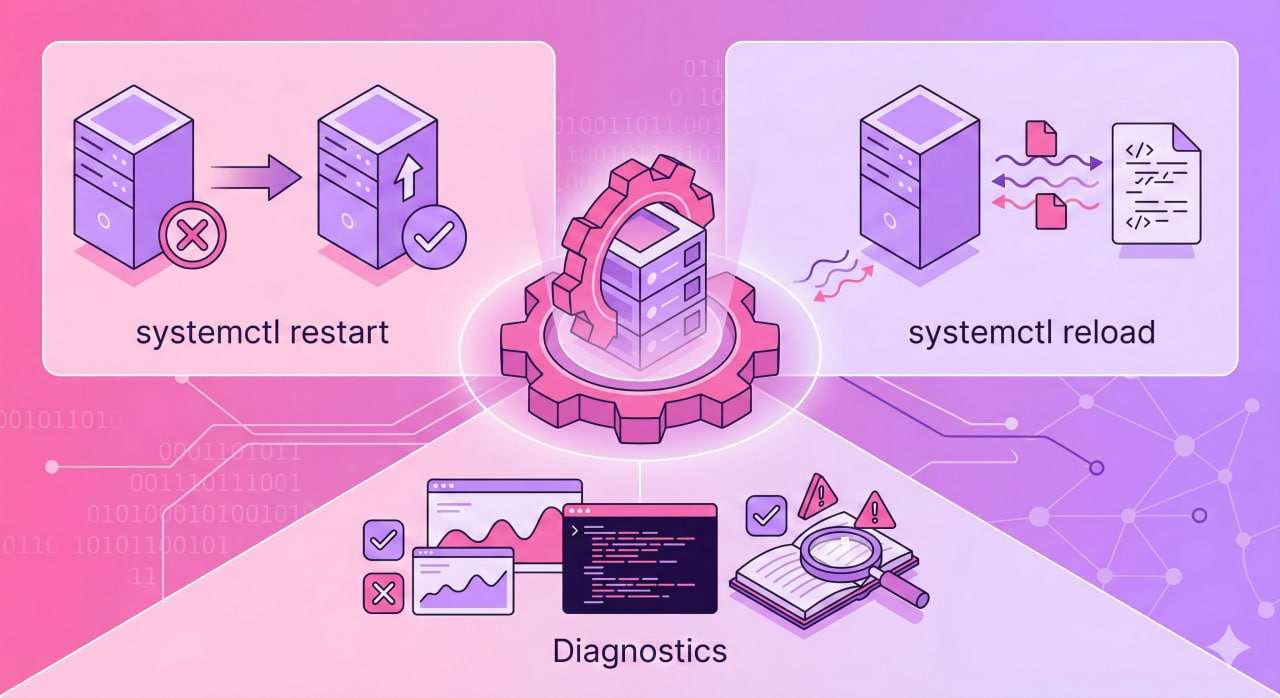
Changed the Nginx config — need to apply it. MySQL is behaving oddly — need to kick it. Updated php-fpm — need a reload. In each of these cases the right command is different. restart is not always what you need.
restart vs reload: The Difference
Two commands that often get confused:
restart — fully stops the process and starts it again. All current connections are dropped. Config is re-read. Takes a few seconds.
reload — the service keeps running, it only re-reads its configuration file. Connections are not dropped. Good for Nginx, Apache, sshd — where dropping connections is undesirable.
Not all services support reload — if the command returns an error, use restart instead.
Core systemctl Commands
Restart a service:
sudo systemctl restart nginx
Re-read config without stopping:
sudo systemctl reload nginx
Re-read config or restart if reload is not supported:
sudo systemctl reload-or-restart nginx
Stop:
sudo systemctl stop nginx
Start:
sudo systemctl start nginx
Check status:
sudo systemctl status nginx
What systemctl status Shows
Always check status after a restart — confirm the service came up:
systemctl status nginx
Active: active (running) — service is up. failed — something went wrong, check logs.
If the Service Did Not Start: Reading Logs
Service failed after restart — check details:
journalctl -u nginx -n 50 --no-pager
Live log stream — useful when debugging a config:
journalctl -u nginx -f
Errors only from the current boot:
journalctl -u nginx -p err -b
The output shows the exact error line — config syntax, occupied port, missing file.
Validate Config Before Restarting
Nginx and Apache have built-in syntax checks. Run before restart — otherwise the service drops and does not come back:
sudo nginx -t
sudo apache2ctl configtest
If output says syntax is ok — safe to restart.
Autostart: Enable and Disable
Check if autostart is enabled:
systemctl is-enabled nginx
Enable autostart on boot:
sudo systemctl enable nginx
Enable and start immediately:
sudo systemctl enable --now nginx
Disable autostart:
sudo systemctl disable nginx
Restart Multiple Services at Once
sudo systemctl restart nginx php8.1-fpm mysql
Service Names Across Distributions
The same program may have different service names:
| Program | Debian/Ubuntu | RHEL/CentOS |
|---|---|---|
| Apache web server | apache2 | httpd |
| MySQL | mysql | mysqld |
| PHP-FPM 8.1 | php8.1-fpm | php-fpm |
| SSH server | ssh | sshd |
| Firewall | ufw | firewalld |
Find the exact service name if unsure:
systemctl list-units --type=service | grep -i nginx
Quick Reference
| Task | Command |
|---|---|
| Restart | sudo systemctl restart name |
| Reload config (no connection drop) | sudo systemctl reload name |
| Reload or restart | sudo systemctl reload-or-restart name |
| Stop | sudo systemctl stop name |
| Start | sudo systemctl start name |
| Status | systemctl status name |
| Service logs | journalctl -u name -n 50 |
| Live log stream | journalctl -u name -f |
| Enable autostart | sudo systemctl enable name |
| Disable autostart | sudo systemctl disable name |
| Enable and start now | sudo systemctl enable --now name |
| Find service name | systemctl list-units --type=service | grep -i name |

