


MySQL does not store databases in one large file. Each database is a separate directory. Each table is one or more files inside it. All of this lives in one location called datadir. Knowing where it is and how to change it matters when moving data to another disk, when the system partition is running low on space, or when recovering from a failure.
Find datadir via Config
The most reliable way — ask MySQL itself where it stores data. The path is written in the configuration file:
sudo grep -R 'datadir' /etc/mysql/
/etc/mysql/mysql.conf.d/mysqld.cnf:datadir = /var/lib/mysql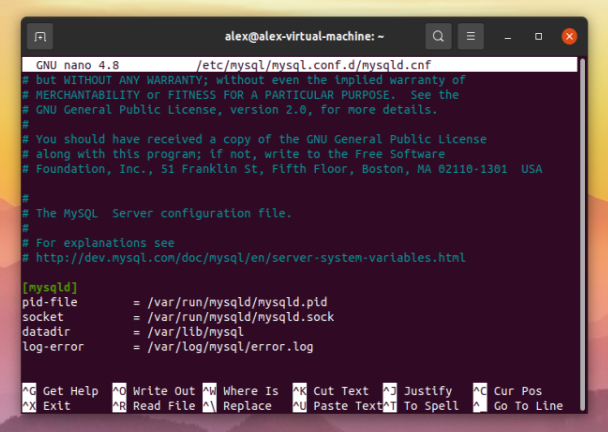
On Ubuntu the default datadir is always /var/lib/mysql.
Find datadir via mysqld
An alternative — ask the binary directly:
mysqld --verbose --help | grep ^datadir
Useful when there are multiple config files and it is unclear which one is actually being applied.
Find datadir via SQL
Another option — from the MySQL console itself:
mysql -u root -p -e "SHOW VARIABLES LIKE 'datadir';"
This shows the value the running server is actually using — not what is written in the config, but what was applied after the last startup.
Browse the datadir Contents
Files in /var/lib/mysql belong to the mysql user — view them via sudo or as root:
sudo su
cd /var/lib/mysql
ls -l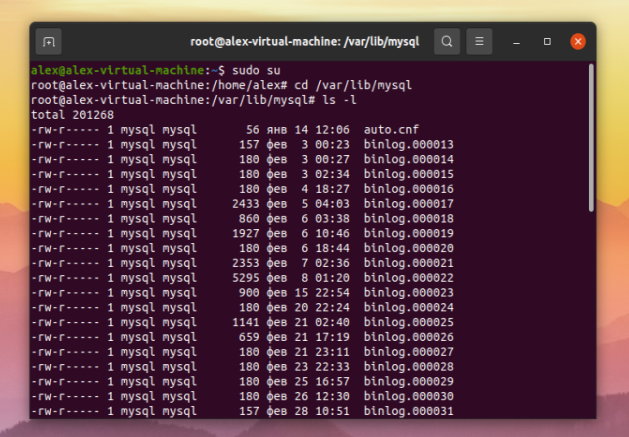
Directory structure: each database is a separate folder named after it. ibdata1 — InnoDB system tablespace. ib_logfile0, ib_logfile1 — InnoDB transaction logs. binlog.* — binary logs if enabled. auto.cnf — server UUID. mysql.ibd — MySQL 8.0+ system database.
How to Change datadir: Moving Data to Another Disk
A common VPS scenario — the system disk is filling up and data needs to move to an additional volume.
Stop MySQL:
sudo systemctl stop mysql
Create the new directory:
sudo mkdir -p /mnt/data/mysql
Copy data preserving permissions:
sudo rsync -av /var/lib/mysql/ /mnt/data/mysql/
Verify the data copied:
sudo ls -la /mnt/data/mysql/
Set correct ownership:
sudo chown -R mysql:mysql /mnt/data/mysql
Open the config file:
sudo nano /etc/mysql/mysql.conf.d/mysqld.cnf
Find the datadir line in the [mysqld] block and update the path:
datadir = /mnt/data/mysql
If AppArmor is enabled — update the profile:
sudo nano /etc/apparmor.d/usr.sbin.mysqld
Find lines with /var/lib/mysql and add equivalent entries for the new path:
/mnt/data/mysql/ r,
/mnt/data/mysql/** rwk,
Reload AppArmor:
sudo systemctl restart apparmor
Start MySQL:
sudo systemctl start mysql
Verify the server started and is reading the new path:
mysql -u root -p -e "SHOW VARIABLES LIKE 'datadir';"
Check File Permissions
Wrong permissions are the most common reason MySQL refuses to start after a migration. The datadir and all its contents must be owned by mysql:mysql:
ls -la /mnt/data/mysql/ | head -5
If ownership is wrong:
sudo chown -R mysql:mysql /mnt/data/mysql
Directory permissions should be 700 or 750 — other users should not read database files directly:
sudo chmod 750 /mnt/data/mysql
Check Database Sizes
See how much space each database uses:
sudo du -sh /var/lib/mysql/*/
Or via SQL — more precise, includes indexes:
mysql -u root -p -e "SELECT table_schema AS 'Database', ROUND(SUM(data_length + index_length) / 1024 / 1024, 2) AS 'Size (MB)' FROM information_schema.tables GROUP BY table_schema ORDER BY 2 DESC;"
Quick Reference
| Task | Command |
|---|---|
| Find datadir via config | sudo grep -R 'datadir' /etc/mysql/ |
| Find datadir via mysqld | mysqld --verbose --help | grep ^datadir |
| Find datadir via SQL | mysql -e "SHOW VARIABLES LIKE 'datadir';" |
| Browse datadir contents | sudo ls -l /var/lib/mysql/ |
| Open MySQL config | sudo nano /etc/mysql/mysql.conf.d/mysqld.cnf |
| Stop MySQL | sudo systemctl stop mysql |
| Start MySQL | sudo systemctl start mysql |
| Set datadir ownership | sudo chown -R mysql:mysql /path/ |
| Database sizes | sudo du -sh /var/lib/mysql/*/ |

