


In Linux, a file does not become executable automatically — even if it is a script with the correct content and a .sh extension. Executability is a separate attribute that must be set explicitly. Without it, the system will refuse to run the file even if it is syntactically valid.
Why Linux Won't Run a File Without the Flag
In Windows, executability is determined by extension: .exe, .bat, .com. In Linux, the extension does not matter. Instead, every file has three separate permission flags for three categories of users:
-rwxr-xr-- 1 user group 1024 Mar 02 12:00 script.sh
Three groups of characters after -: owner permissions (rwx), group (r-x), others (r--). The letter x in each group is the execute flag. If it shows - instead, the file cannot be run.
Attempting to run a file without the flag produces an error:
bash: ./script.sh: Permission denied
Or in some shells:
The file './script' is not executable by this user
The chmod Command: Syntax
Flags are managed by the chmod utility. Basic syntax:
chmod [category][action][flag] file
Categories:
u— user (file owner)g— groupo— othersa— all three categories at once
Actions:
+— add permission-— remove permission=— set exactly these permissions (remove others)
Flags:
x— executer— readw— write
Grant Execute Permission
For the owner only:
chmod u+x script.sh
For everyone — owner, group, and others:
chmod a+x script.sh
Or shorter:
chmod +x script.sh
Without a category, chmod applies a — to all. After this the file can be run:
./script.sh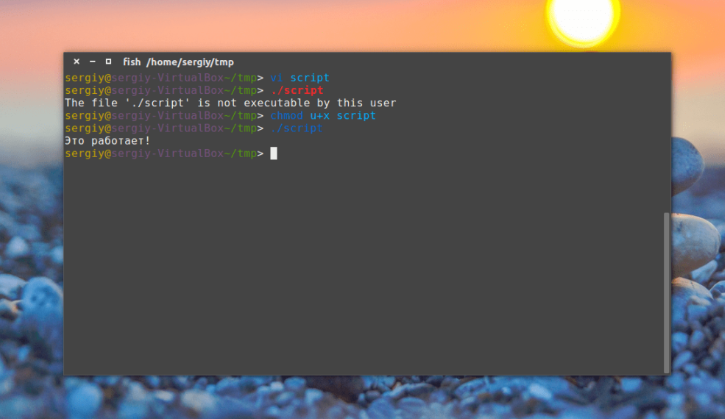
Check Current Permissions
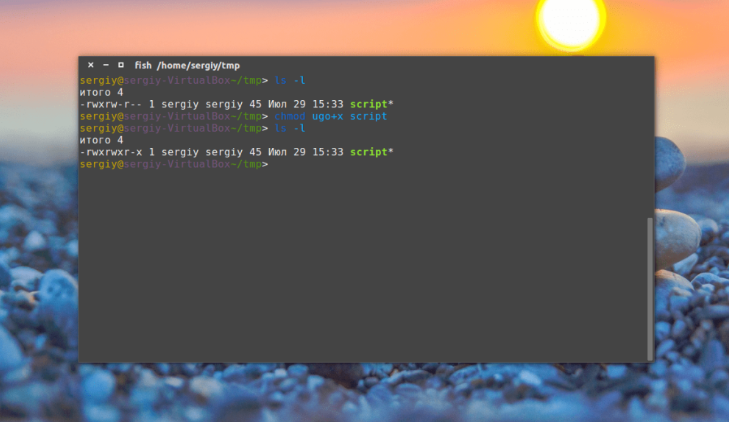
To view a file's flags — use ls -l:
ls -l script.sh
Output before setting the flag:
-rw-rw-r-- 1 user user 45 Mar 02 15:33 script.sh
After chmod ugo+x script.sh:
-rwxrwxr-x 1 user user 45 Mar 02 15:33 script.sh
The letter x now appears in the owner, group, and others positions. An asterisk * after the filename in some terminals is also a sign of an executable file.
Numeric Method: Octal Permissions
In addition to symbolic notation, chmod accepts numbers in octal. Each digit encodes the permissions for one category:
| Digit | Permissions | Meaning |
|---|---|---|
| 7 | rwx | read + write + execute |
| 6 | rw- | read + write |
| 5 | r-x | read + execute |
| 4 | r-- | read only |
| 0 | --- | no permissions |
Three digits — permissions for owner, group, and others.
Typical scenarios:
# Owner has full rights, others can read and execute
chmod 755 script.sh

# Only the owner can do everything, others have no access
chmod 700 script.sh

# Everyone can do everything (unsafe for scripts with passwords)
chmod 777 script.sh
755 is the standard for executable scripts and programs. 700 is for scripts containing sensitive data (keys, passwords).
Remove Execute Permission
chmod -x script.sh
Or for a specific category only:
chmod o-x script.sh # remove for others, keep for owner and group
Recursively for All Files in a Directory
The -R flag applies permissions to all files and subdirectories:
chmod -R +x /opt/myapp/
Use caution with recursion — the x flag will be added to plain data files and directories alike. For directories, x means the right to enter them, not to run them — a different thing. A more precise approach uses find:
# Only .sh files
find /opt/myapp -name "*.sh" -exec chmod +x {} \;

# Only regular files (not directories)
find /opt/myapp -type f -exec chmod +x {} \;
GUI Method: Via File Manager
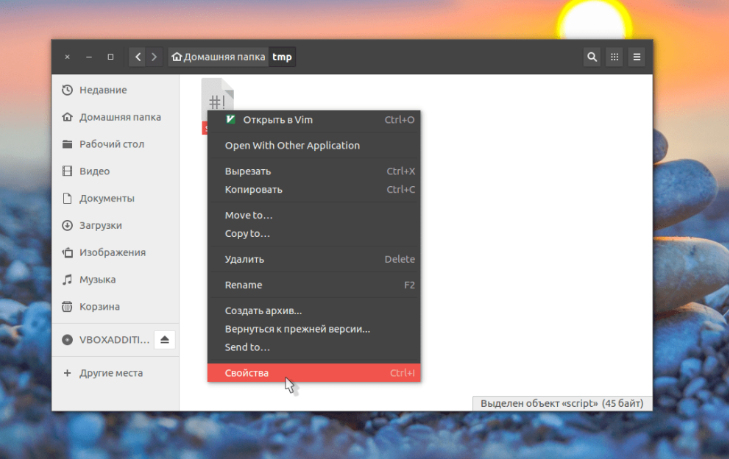
For those who prefer a graphical interface — the execute flag can be set through Nautilus (GNOME file manager) without a terminal.
Right-click the file → Properties.
Go to the Permissions tab. Check the box "Allow executing file as program".
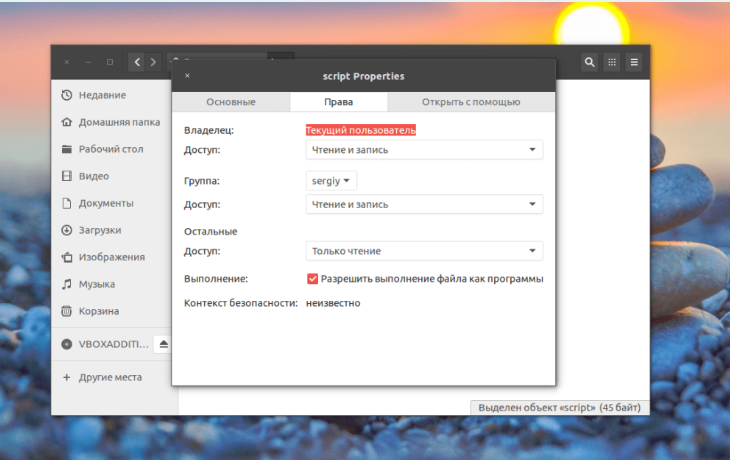
This is the equivalent of chmod u+x — the flag is added for the owner only.
In other environments, similar options are in the same place: Thunar (Xfce) — "Permissions" tab, Dolphin (KDE) — "Permissions" tab.
Common Errors
chmod: changing permissions of 'file': Operation not permitted No rights to modify the file. Use sudo or change the owner with chown.
Flag added but the script still won't run Most likely the interpreter is not specified. Add a shebang to the first line of the script:
#!/bin/bash
Or for Python:
#!/usr/bin/env python3
File is on a FAT32/NTFS partition — chmod does not work FAT32 and NTFS file systems do not support Linux flags. The flag cannot be set or removed. Solution — copy the file to a partition with ext4/xfs/btrfs.
Quick Reference
| Task | Command |
|---|---|
| Make executable for everyone | chmod +x file |
| For owner only | chmod u+x file |
| Numeric method (standard) | chmod 755 file |
| Remove execute permission | chmod -x file |
| Recursively for all .sh files | find . -name "*.sh" -exec chmod +x {} \; |
| Check current permissions | ls -l file |
| Show numeric permissions | stat -c "%a %n" file |

