


7z is rarely included in Linux distributions by default — no pre-installed archiver, no file manager support out of the box. But when someone sends an archive in this format or you need a maximally compressed backup, you need to know how to handle it. From installation to non-obvious scenarios.
Why 7z and Not zip
The LZMA2 algorithm used by 7z delivers 10–40% better compression than Deflate in ZIP. In practice, an archive that weighs 500 MB as zip may compress to 350–380 MB as 7z with the same data. For text files, databases, and source code the difference is even more noticeable.
Downsides — weaker cross-platform support compared to zip, and slower extraction on low-end hardware due to intensive CPU usage.
Installing p7zip
The p7zip-full package is needed to work with 7z on Linux. It includes both the 7z command-line utility and the library used by GUI archivers.
Debian / Ubuntu / Mint:
sudo apt install p7zip-full
Red Hat / CentOS / Rocky / AlmaLinux:
sudo yum install p7zip p7zip-plugins
Fedora:
sudo dnf install p7zip p7zip-plugins
Arch Linux / Manjaro:
sudo pacman -S p7zip
Verify the installation and list supported formats:
7z i
Extracting with p7zip
The simplest way — the p7zip utility. Extracts into the current directory:
p7zip -d file.7z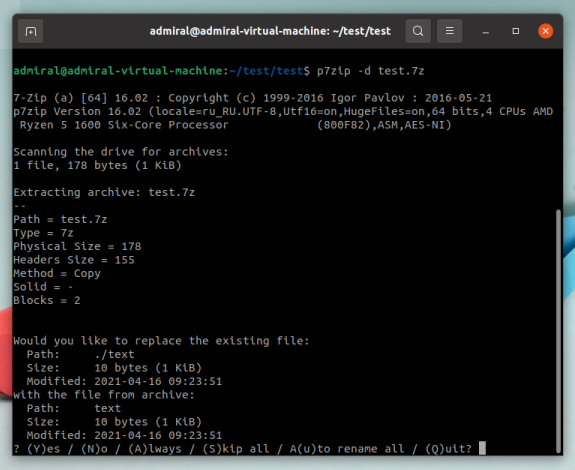
If the archive is encrypted — p7zip asks for the password automatically. Choosing a target directory is not possible with p7zip — only the current directory. Use 7z for more control.
Extracting with 7z: Full Control
7z is the main utility with the complete parameter set. Two key extraction modes:
x — extract preserving directory structure:
7z x file.7z
e — extract all files flat, without subdirectories:
7z e file.7z
The difference matters when the archive contains subdirectories. x recreates the full structure, e dumps everything into one directory.
Extract to a Specific Folder
The -o flag sets the target directory. Important: no space between -o and the folder name:
7z x file.7z -o/home/user/unpacked
Extract into a subfolder next to the archive:
7z x file.7z -o./extracted
The tilde ~ does not work — use the full path:
7z x file.7z -o/home/username/
If you write ~/folder, 7z will create a folder literally named ~ next to the archive.
Browse Contents Without Extracting
List what is inside the archive:
7z l file.7z
Find files with a specific extension inside the archive:
7z l file.7z -r "*.sql"
Selective Extraction
Extract only .db files:
7z e file.7z -r "*.db"
Extract a specific file by name:
7z e file.7z config.json
Extract a specific file preserving its path:
7z x file.7z "backup/configs/nginx.conf"
Password-Protected Archive
If the archive is password-protected — 7z prompts interactively. Or pass the password directly with the -p flag:
7z x file.7z -pMYPASSWORD
No space between -p and the password. If the password contains special characters, wrap it in quotes: -p"my password".
Creating a 7z Archive
7z creates archives too. Archive a folder:
7z a archive.7z /path/to/folder/
Maximum compression (level 9):
7z a -mx=9 archive.7z /path/to/folder/
With password and filename encryption:
7z a -p -mhe=on archive.7z /path/to/folder/
-mhe=on encrypts not just the contents but also the filenames inside the archive — without the password even the structure is hidden.
Split into 500 MB volumes:
7z a -v500m archive.7z /path/to/folder/
GUI Archivers With 7z Support
All of them use the p7zip-full library under the hood — install it first.
| Archiver | Environment | Install |
|---|---|---|
| File Roller | GNOME | pre-installed |
| Ark | KDE | pre-installed |
| Engrampa | MATE | pre-installed |
| PeaZip | GTK/Qt | snap install peazip |
| Xarchiver | universal | apt install xarchiver |
PeaZip is the most full-featured GUI option: supports password-protected creation, volume splitting, and encryption through a graphical interface.
Common Extraction Errors
Can not open output file — insufficient permissions in the target directory. Check permissions or change the extraction folder.
Wrong password — incorrect password. Try wrapping it in quotes if it contains special characters: -p"my password".
Unexpected end of archive — archive is damaged or incompletely downloaded. Check the file size and re-download if needed.
Cannot allocate memory — not enough RAM for extraction. Reduce thread count: 7z x file.7z -mmt=2.
Test archive integrity without extracting:
7z t file.7z
t (test) runs the entire archive through CRC verification without writing any files to disk.
Quick Reference
| Task | Command |
|---|---|
| Install p7zip | sudo apt install p7zip-full |
| Extract to current folder | 7z x file.7z |
| Extract to specific folder | 7z x file.7z -o/path/to/folder |
| Extract with password | 7z x file.7z -pPASSWORD |
| Browse contents | 7z l file.7z |
| Extract only .sql files | 7z e file.7z -r "*.sql" |
| Test archive integrity | 7z t file.7z |
| Create archive | 7z a archive.7z /folder/ |
| Create with max compression | 7z a -mx=9 archive.7z /folder/ |
| Create with password + encrypt names | 7z a -p -mhe=on archive.7z /folder/ |
| Split into 500 MB volumes | 7z a -v500m archive.7z /folder/ |

