


sudo prompts for a password on every use — this is an intentional security measure. The system verifies that a privileged command is being run by the actual user and not a script or program attempting unauthorized access.
That said, there are legitimate cases where disabling the password makes sense: automated scripts and CI/CD pipelines, system maintenance on isolated servers, development environments where frequent password prompts disrupt the workflow. For production servers with public access, disabling the password is not recommended.
How It Works: the NOPASSWD Directive
sudo behavior is configured in /etc/sudoers. Adding the NOPASSWD directive to a user or group entry disables the password prompt for the specified commands.
The /etc/sudoers file must only be edited via visudo — the utility validates syntax before saving and prevents writing a broken file. An error in sudoers can completely lock out access to sudo.
sudo visudo
Disable Password for a Specific User
Find the User privilege specification section and add a line:
linux90 ALL=(ALL) NOPASSWD: ALL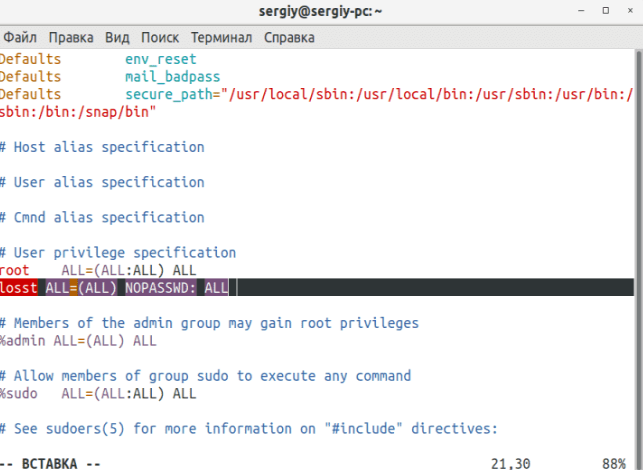
Breaking down the format linux90 ALL=(ALL) NOPASSWD: ALL:
linux90— the username- first
ALL— from any host (ALL)— as any userNOPASSWD:— without a password prompt- last
ALL— for any command
Save and close. In vi: Esc, then :wq. After this, sudo will not prompt linux90 for a password for any command.
Disable Password for Specific Commands Only
To keep password prompts for most commands but disable them for specific ones — for example apt and reboot:
linux90 ALL=(ALL) NOPASSWD: /usr/bin/apt, /sbin/reboot
Paths must be absolute. Commands are separated by commas. For all other commands, the password will still be requested normally.
Find the full path to a command:
which apt
which reboot
Disable Password for a Group of Users
To apply the setting to all members of a group — use the % prefix before the group name:
%group_name ALL=(ALL) NOPASSWD: ALL
For example, for a group called deploy:
%deploy ALL=(ALL) NOPASSWD: /usr/bin/apt, /usr/bin/systemctl
All members of the deploy group will be able to run apt and systemctl without a password.
Add a user to the group:
sudo usermod -aG deploy username
Use a File in sudoers.d (Recommended Approach)
Rather than editing the main /etc/sudoers file, it is better to create a separate file in /etc/sudoers.d/. This is more manageable for multiple users and safer during system updates:
sudo visudo -f /etc/sudoers.d/linux90
File contents:
linux90 ALL=(ALL) NOPASSWD: ALL
The file permissions must be 0440:
sudo chmod 0440 /etc/sudoers.d/linux90
Files from /etc/sudoers.d/ are included automatically via the #includedir directive in the main sudoers file.
Verify the Setting Was Applied
sudo -l -U linux90
The output should contain a line with NOPASSWD:
(ALL) NOPASSWD: ALL
Or switch to the user and test:
su - linux90
sudo apt update
No password will be requested.
Re-enable the Password Prompt
Remove the NOPASSWD line via visudo, or delete the created file from sudoers.d:
sudo rm /etc/sudoers.d/linux90
Quick Reference
| Task | sudoers line |
|---|---|
| No password for a user | user ALL=(ALL) NOPASSWD: ALL |
| No password for specific commands | user ALL=(ALL) NOPASSWD: /usr/bin/apt, /sbin/reboot |
| No password for a group | %group ALL=(ALL) NOPASSWD: ALL |
| Edit sudoers safely | sudo visudo |
| Separate file per user | sudo visudo -f /etc/sudoers.d/username |
| Check user's sudo permissions | sudo -l -U username |

