


The RDP connection is established, the session is open, but instead of a desktop — a black screen. The cursor moves but nothing appears. This issue is well known to VPS users running Windows Server 2019 and early builds of Windows 10.
The good news: in most cases this is fixed without rebooting the server, in a few minutes.
Why This Happens
A black screen in RDP is not one problem — it is several with the same symptom. The most common causes:
- a previous session hung and did not release the desktop
- WDDM driver conflict with the virtual display adapter on the VPS
- bitmap caching in the RDP client interferes with the initial render
- UDP transport is blocked at the network level or handled incorrectly
- Full Screen resolution setting creates a rendering conflict
Main Method: Step-by-Step Fix
Work through the steps in order. Once the black screen is gone — stop there.
Step 1. End the Hung Session
Inside the RDP window showing the black screen, press Ctrl + Alt + End — this is the equivalent of Ctrl + Alt + Del within the remote session.
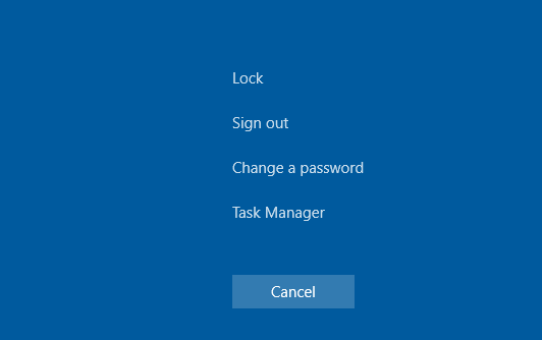
The Windows security menu appears. Select Sign out — the session ends. Close the RDP window and reconnect. In most cases the desktop appears after this.
If Ctrl + Alt + End does not respond — use the button at the top of the RDP window (monitor icon or three dots) to send Ctrl+Alt+Del manually.
Bonus tip: if the Task Manager opens from this menu but the desktop is still black, try launching explorer.exe manually: Task Manager → File → Run new task → type explorer.exe. Sometimes Explorer simply failed to start while the session itself is alive.
Step 2. Change the RDP Client Settings
If reconnecting did not help — check the client settings. Two parameters most often cause a black screen: bitmap caching and Full Screen resolution.
Open Remote Desktop Connection → Show Options.
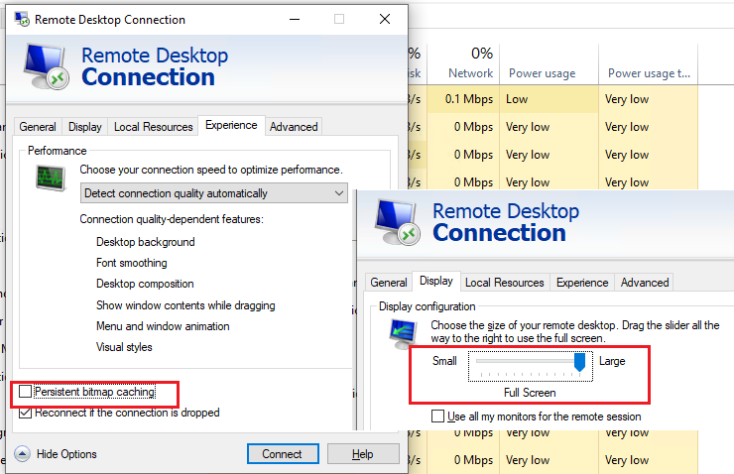
Experience tab: uncheck Persistent bitmap caching.
Display tab: move the resolution slider slightly to the left — away from the Full Screen position. One notch below maximum is enough.
Save and reconnect.
Step 3. Update or Disable the Display Adapter Driver
On a Windows VPS, the virtual display adapter is usually Matrox G200e or Microsoft Remote Display Adapter. An outdated or conflicting WDDM driver can be the direct cause of the black screen.
Open Device Manager (Win + X → Device Manager) → expand Display adapters.
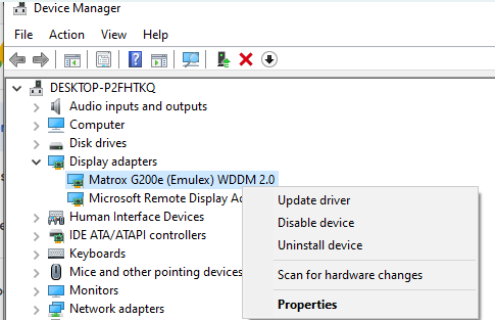
Right-click the adapter and try:
- Update driver — automatic search for a newer version
- Disable device — the system switches to the basic Microsoft driver; display quality drops but the black screen issue disappears
Step 4. Disable WDDM via Group Policy
If disabling in Device Manager worked but the setting needs to be locked in at policy level — do it through GPO.
Open Win + R → gpedit.msc.
Navigate to: Computer Configuration → Administrative Templates → Windows Components → Remote Desktop Services → Remote Desktop Session Host → Remote Session Environment.
Find the policy Use WDDM graphics display driver for Remote Desktop Connections. Set it to Disabled.
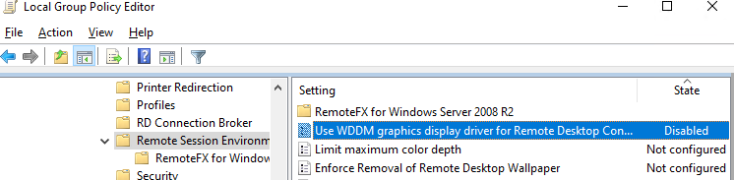
Apply: Win + R → cmd → gpupdate /force
Step 5. Disable UDP Transport
Starting from Windows 8, RDP uses UDP alongside TCP to speed up the connection. If UDP packets are being blocked by intermediate network equipment or processed with delays — this can manifest as a black screen on connection.
In the same gpedit.msc, navigate to: Computer Configuration → Administrative Templates → Windows Components → Remote Desktop Services → Remote Desktop Connection.
Find the policy Turn Off UDP On Client. Set it to Enabled.
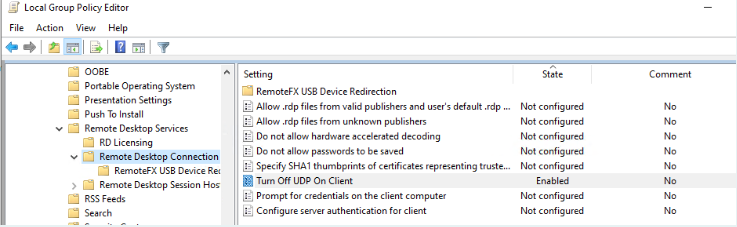
After this, RDP will operate over TCP only. Apply: gpupdate /force.
Alternative via registry — useful for servers without GUI or for remote deployment:
reg add "HKLM\SOFTWARE\Policies\Microsoft\Windows NT\Terminal Services\Client" /v fClientDisableUDP /t REG_DWORD /d 1 /f
Separate Method: RemoteFX Compression Settings
If the server runs RemoteFX (common in Hyper-V environments), the default RDP compression algorithm can conflict with the host configuration.
In gpedit.msc, navigate to: Computer Configuration → Administrative Templates → Windows Components → Remote Desktop Services → Remote Desktop Session Host → Remote Session Environment → RemoteFX for Windows Server 2008 R2.
Open the policy Configure compression for RemoteFX data. Set it to Enabled, then in the dropdown select Do not use an RDP compression algorithm.
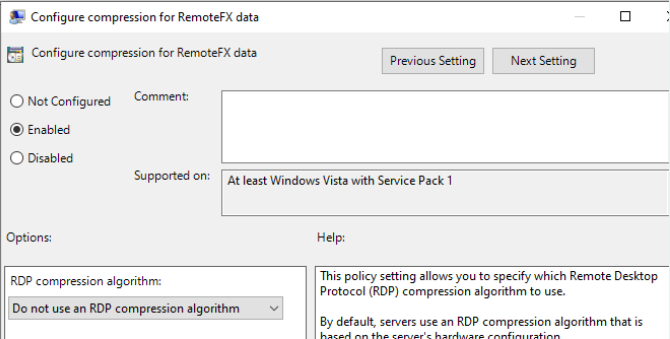
Apply and reconnect.
Summary Table
| Step | Action | When it helps |
|---|---|---|
| 1 | Ctrl+Alt+End → Sign out | Hung session — the most common cause |
| 2 | Disable bitmap caching, reduce resolution | Problem with initial render |
| 3 | Update/disable driver in Device Manager | WDDM driver conflict |
| 4 | GPO: disable WDDM | Locking in the fix from step 3 |
| 5 | GPO/registry: Turn Off UDP | UDP blocked at network level |
| 6 | RemoteFX: disable compression algorithm | RemoteFX/Hyper-V environments |
If none of the methods worked — the issue may be specific to a particular Windows build or hypervisor configuration. Check the system event log (eventvwr.msc) under Windows Logs → System for errors at the time of connection.

