



A password in the Ubuntu system is a secret string of characters used to authenticate a user and protect their account and data. The password confirms the user's identity when logging into the system or when performing actions requiring elevated privileges (for example, installing software or changing system settings).
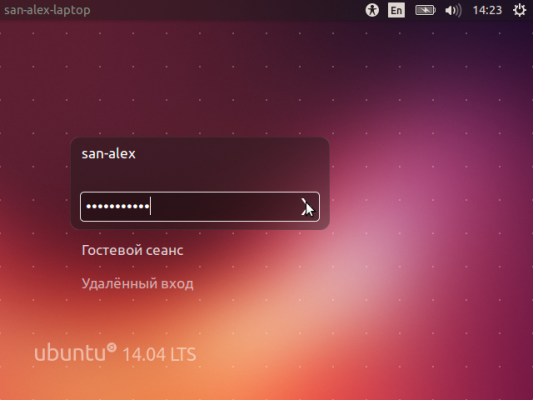
Why Change a Password in Ubuntu
Changing a password in Ubuntu (or in any other operating system) is important for several reasons:
- Regular password changes help protect your system from unauthorized access. If someone has gained access to your current password, changing it will prevent further access.
- If you suspect your password may have been compromised (for example, after a data breach), it is important to change it immediately.
- When changing your password, you can create a more complex and secure password that will be harder to guess or crack.
- Some organizations have requirements for regular password changes to enhance security.
- If you use the same password for various services, changing it can help you better manage your accounts and improve overall security.
In Ubuntu, changing the password is done through the terminal using the passwd command or through the graphical interface in the system settings.
Instructions for Changing the System Password
To change the password in Ubuntu, the passwd command is used. You need to open a terminal and log in as the root user:
sudo suThe shell will ask for the administrator password. After successfully entering the code, a prompt will appear as root.
Now you can proceed directly with the password change procedure:
passwdAfter entering this command, you will be prompted to enter a new sudo password twice.
Once it is successfully changed, you can return to the regular user shell by executing:
exitHowever, to use this command to change the password for an account other than your own, you need to use the extended syntax:
sudo passwd [user_name]In this case, the command should be executed via sudo. After entering this construct, you will also be prompted to enter the new password twice, but this time for the user specified in the argument.